Introduction
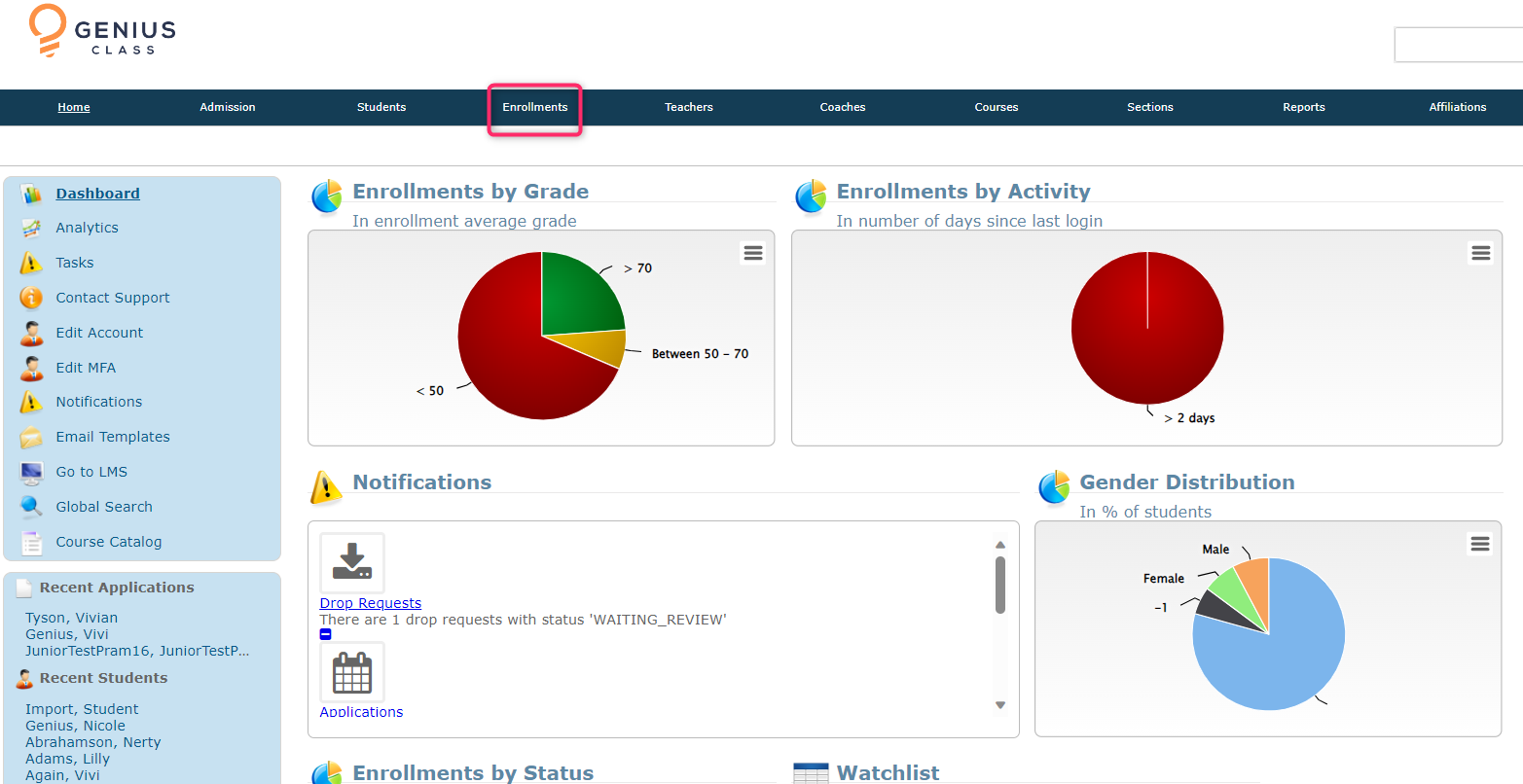
After each quarter or semester, educational institutions often seek effective methods to communicate the academic progress of their students to both guardians and the students themselves. One of the most straightforward and efficient ways to disseminate gradebook information is through the PROGRESS REPORT feature, which can be conveniently located under the ENROLLMENTS tab.
The subsequent images illustrate a straightforward five-step process for sending progress reports to any chosen group of students, ensuring that everyone stays informed about their academic performance.
Step 1: Hover over the ENROLLMENTS tab and select "Send Progress Report."
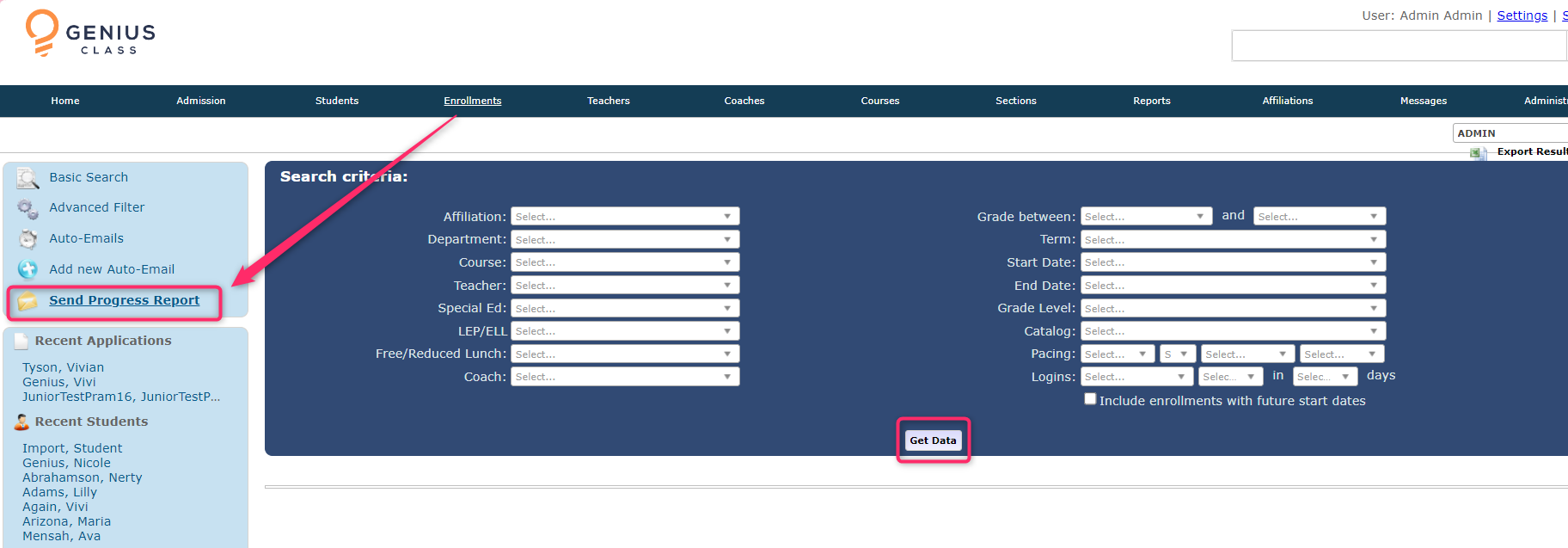
Step 2: Filter the search criteria as needed and click "Get Dat.a"
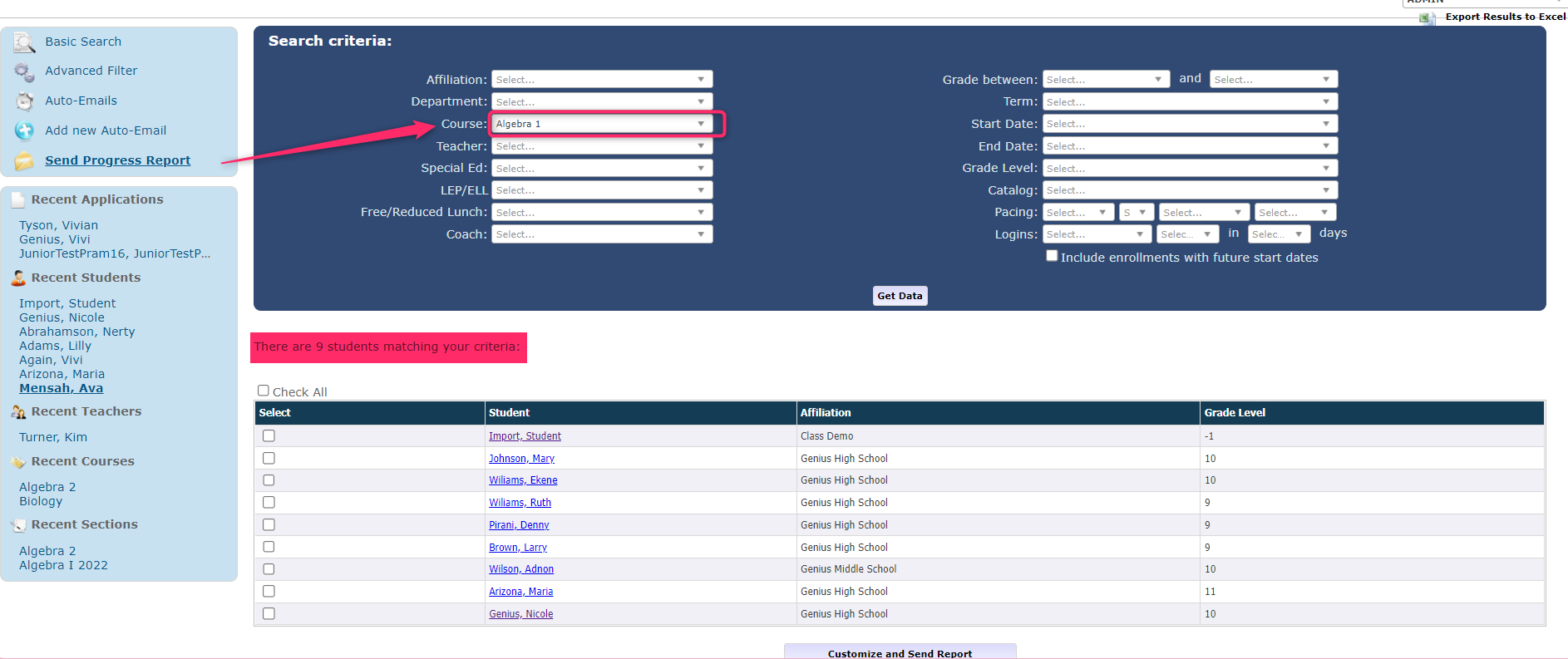
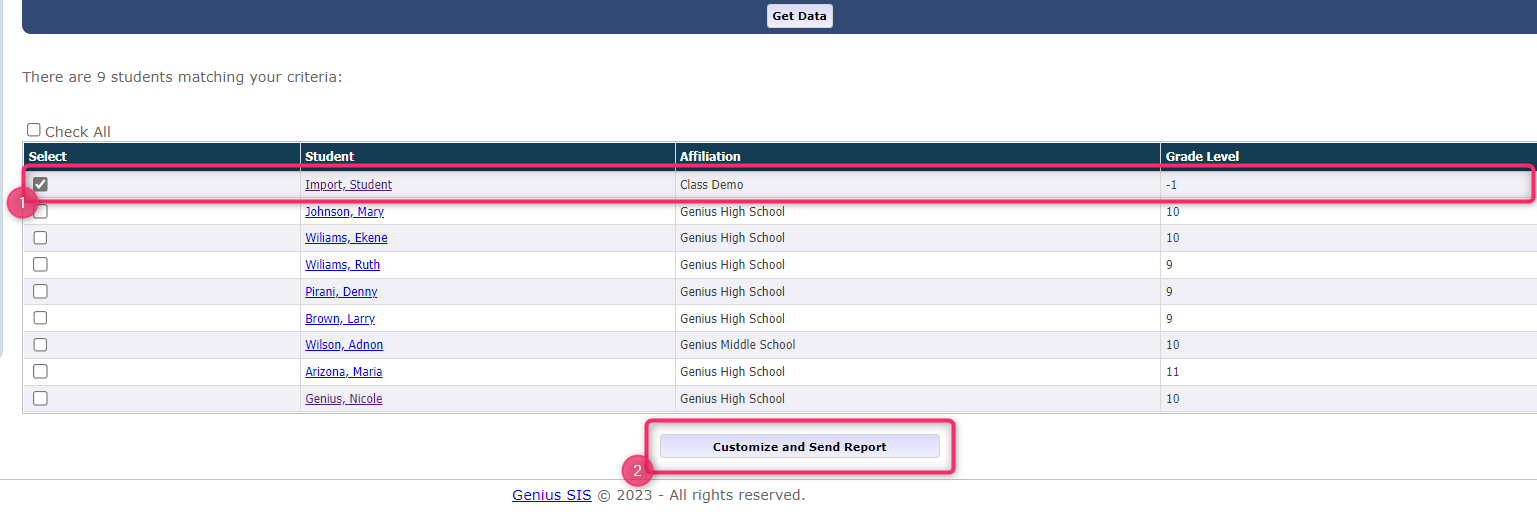
Step 3: Select the students you want to send progress reports to with the check box under "Select" and then click "Customize and Send Repo.rt"
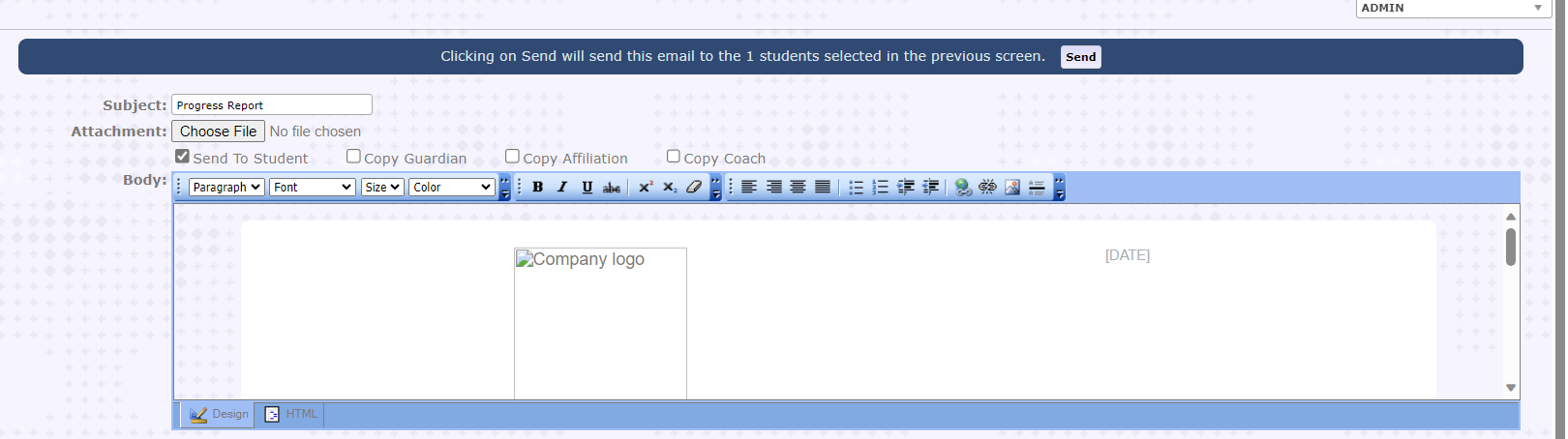
Step 4: Review the default Progress Report email template and make any necessary edits in the subject, add an attachment if needed, and select who this report will be sent to.
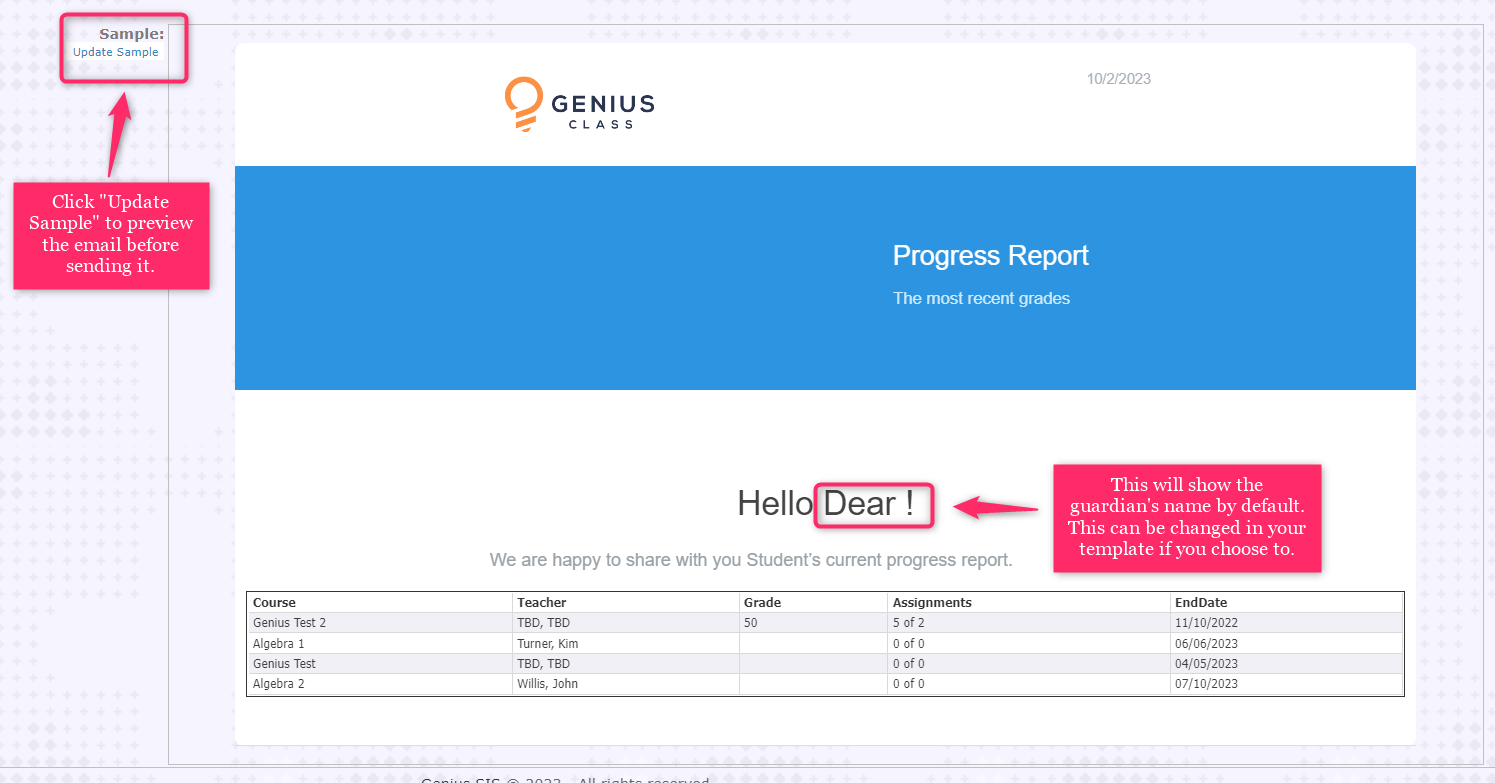
To preview the report as it would appear to the recipient, click "Update Sample" and scroll down.
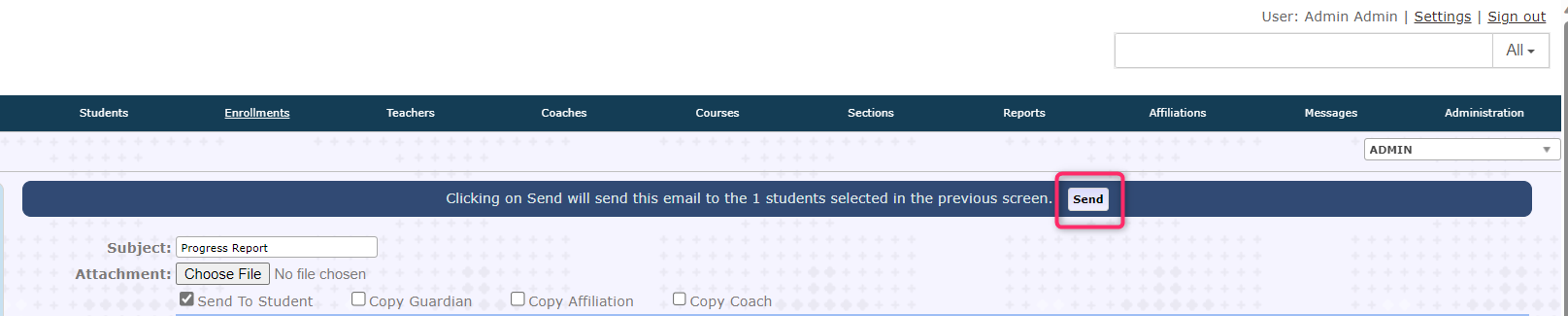
Step 5: Clicking "Send" will send the emails on file to the recipient you selected.
Comments
0 comments
Article is closed for comments.